The ROUND function
The ROUND function allows you to automatically round a numeric results up or down based on the principal that values less than 0.5 are rounded down, and values equal to or larger than 0.5 are rounded up.
This is the format of the ROUND function:
=ROUND(NUMBER, NUMBER OF DIGITS)Here is an example of the ROUND function:
=ROUND(5647.8, 0)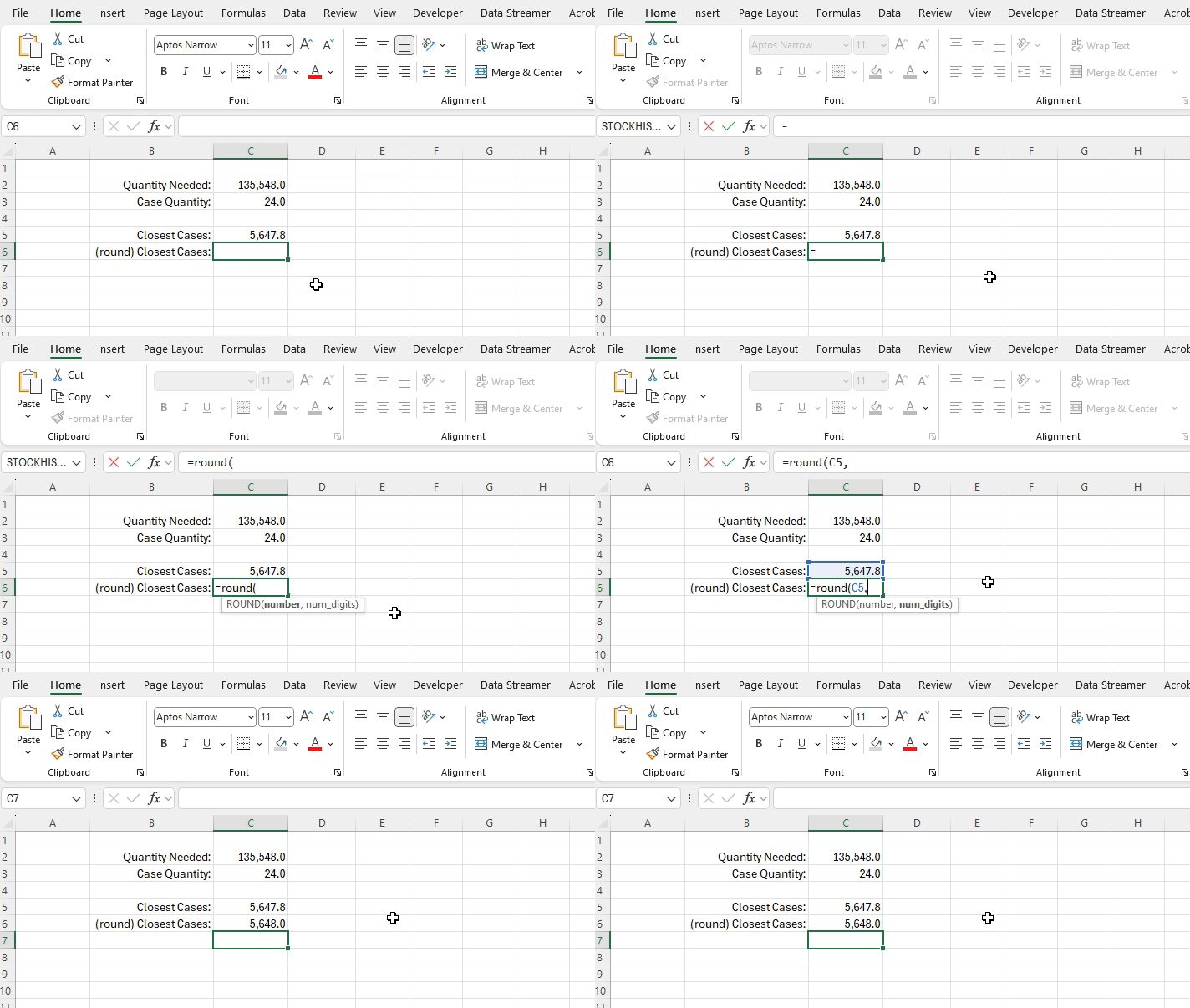
ROUND function returning the rounded value of 5,648 from the input of 5,647.8 rounded to zero decimal places.
This function is valuable when you are dealing with situations when decimal numbers, or decimals past a certain level of granularity are not realistically possible or viable.
An example of a functional implementation of this would be creating a file that stores recipes and allows you to scale them up or down to meet the number of servings needed. Some ingredients (like eggs) need to be measured in whole increments, without decimal places. Others such as those measured in grams or mL, can only go down to a certain number of decimal places based on the measuring equipment you have available.
ex: a recipe calls for 2.7 eggs when making 9 servings, but realistically a whole number of eggs is required at all times
=ROUND(2.7, 0)One additional trick with ROUND is to put a negative integer in the place of the NUMBER OF DIGITS argument. This is a more advanced feature which you can use to round a value not to a decimal place, but to the ten’s, hundred’s, or thousand’s place.
An example of this would be if you need to buy in bulk and products only are available in cases of 10. You could use ‘-1’ in the NUMBER OF DIGITS argument to round whatever number to the nearest multiple of 10. This is similar to how the function MROUND works.